Cropping and Transforming PDFs
Note
Just because content is no longer visible, it is not gone. Cropping works by adjusting the viewbox. That means content that was cropped away can still be restored.
from pypdf import PdfReader, PdfWriter

reader = PdfReader("Seige_of_Vicksburg_Sample_OCR.pdf")
writer = PdfWriter()

# Add page 1 from reader to output document, unchanged.
writer.add_page(reader.pages[0])

# Add page 2 from reader, but rotated clockwise 90 degrees.
writer.add_page(reader.pages[1].rotate(90))

# Add page 3 from reader, but crop it to half size.
page3 = writer.add_page(reader.pages[2])
page3.mediabox.upper_right = (
    page3.mediabox.right / 2,
    page3.mediabox.top / 2,
)

writer.write("out-all-in-one.pdf")
Page rotation
The most typical rotation is a clockwise rotation of the page by multiples of
90 degrees. That is done when the orientation of the page is wrong. You can
do that with the rotate() method:
from pypdf import PdfReader, PdfWriter

reader = PdfReader("example.pdf")
writer = PdfWriter()

writer.add_page(reader.pages[0])
writer.pages[0].rotate(90)

writer.write("out-page-rotation.pdf")
The rotate method is typically preferred over the page.add_transformation(Transformation().rotate())
method, because rotate will ensure that the page is still in the mediabox/cropbox.
The transformation object operates on the coordinates of the page
contents and does not change the mediabox or cropbox.
Plain Merge
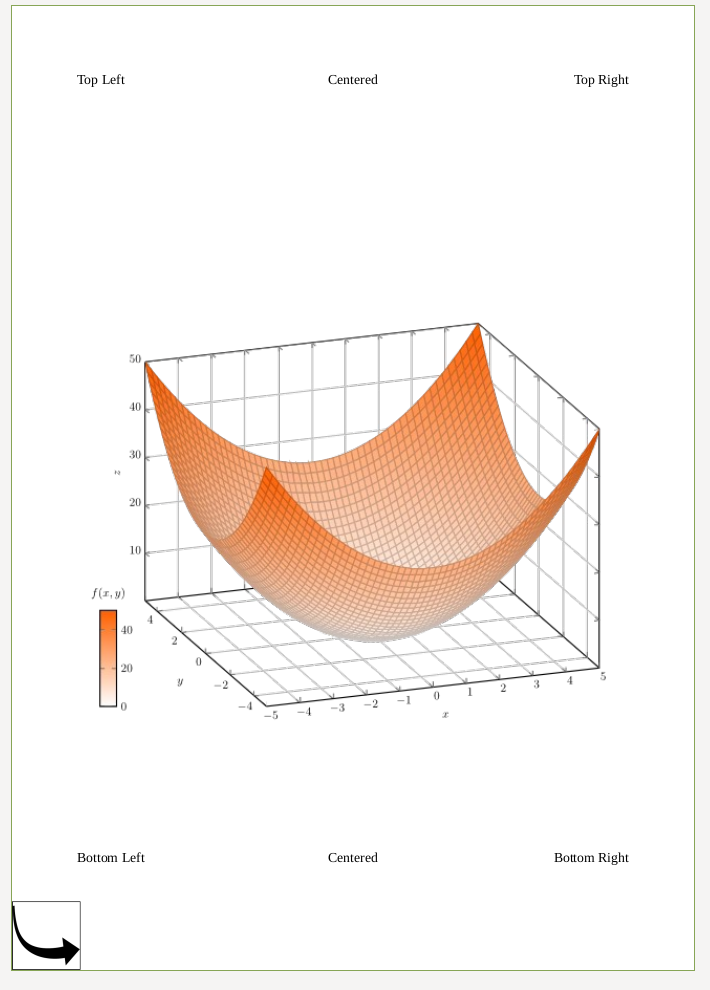
is the result of
from pypdf import PdfReader, PdfWriter, Transformation

# Get the data
reader_base = PdfReader("labeled-edges-center-image.pdf")
page_base = reader_base.pages[0]

reader = PdfReader("box.pdf")
page_box = reader.pages[0]

# Write the result back
writer = PdfWriter()
page = writer.add_page(page_base)
page.merge_page(page_box)
writer.write("out-plain-merge.pdf")
Merge with Rotation
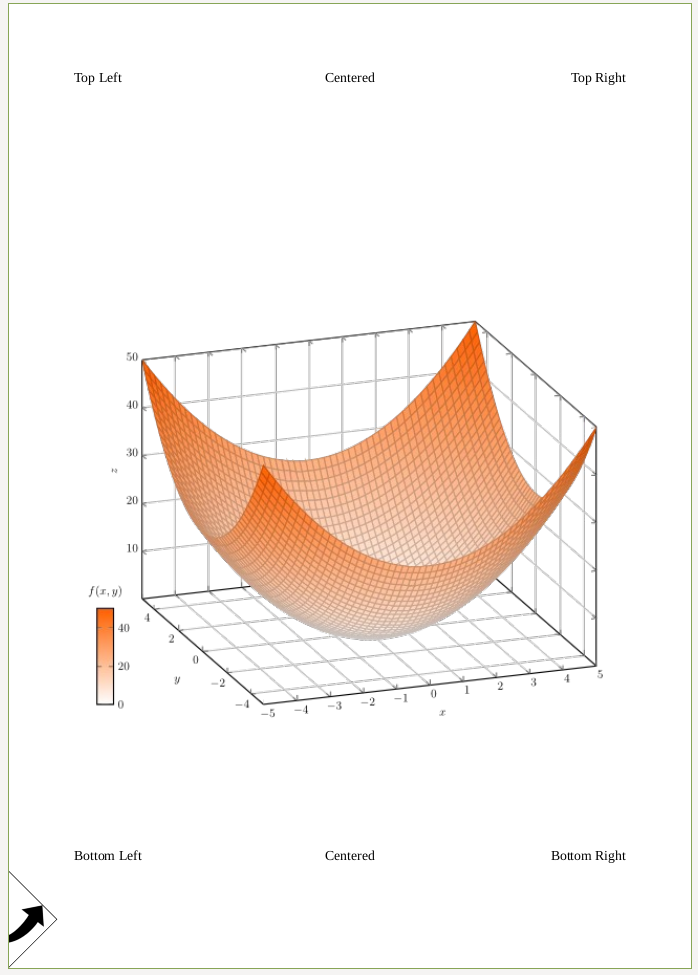
from pypdf import PdfReader, PdfWriter, Transformation

# Get the data
reader_base = PdfReader("labeled-edges-center-image.pdf")
page_base = reader_base.pages[0]

reader = PdfReader("box.pdf")
page_box = reader.pages[0]

# Prepare writer
writer = PdfWriter()

# Add base page.
writer_page = writer.add_page(page_base)

# Apply the transformation and merge the pages.
transformation = Transformation().rotate(45)
writer_page.merge_transformed_page(page_box, transformation)

# Write the result back
writer.write("out-merge-with-rotation.pdf")
If you add the expand parameter:
transformation = Transformation().rotate(45)
writer_page.merge_transformed_page(page_box, transformation, expand=True)
you get:
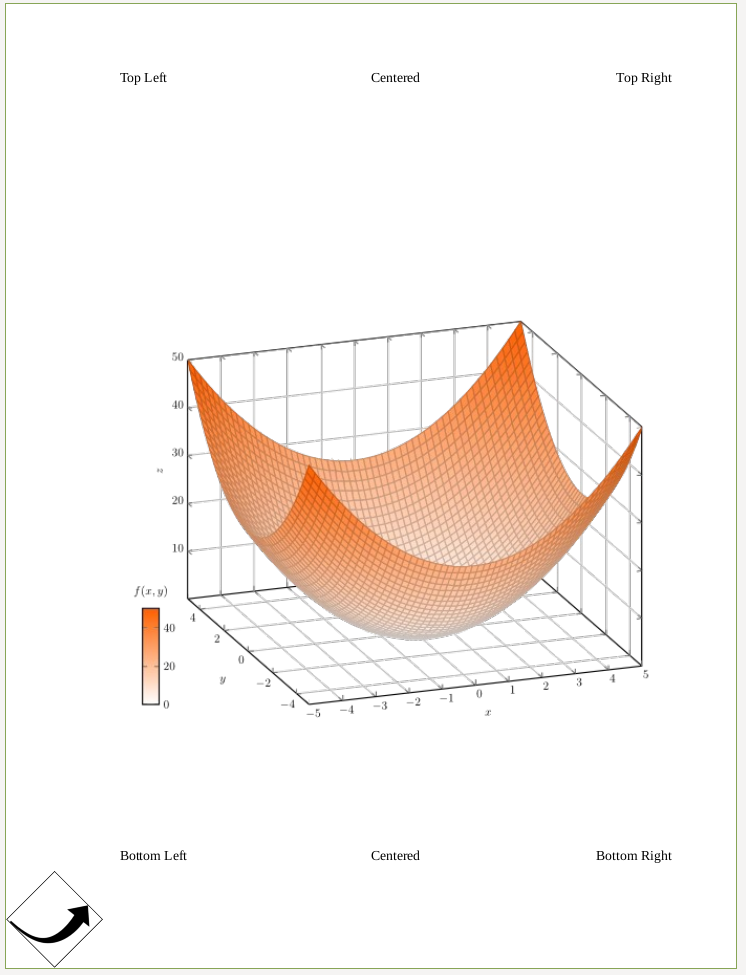
Alternatively, you can move the merged image a bit to the right by using
op = Transformation().rotate(45).translate(tx=50)
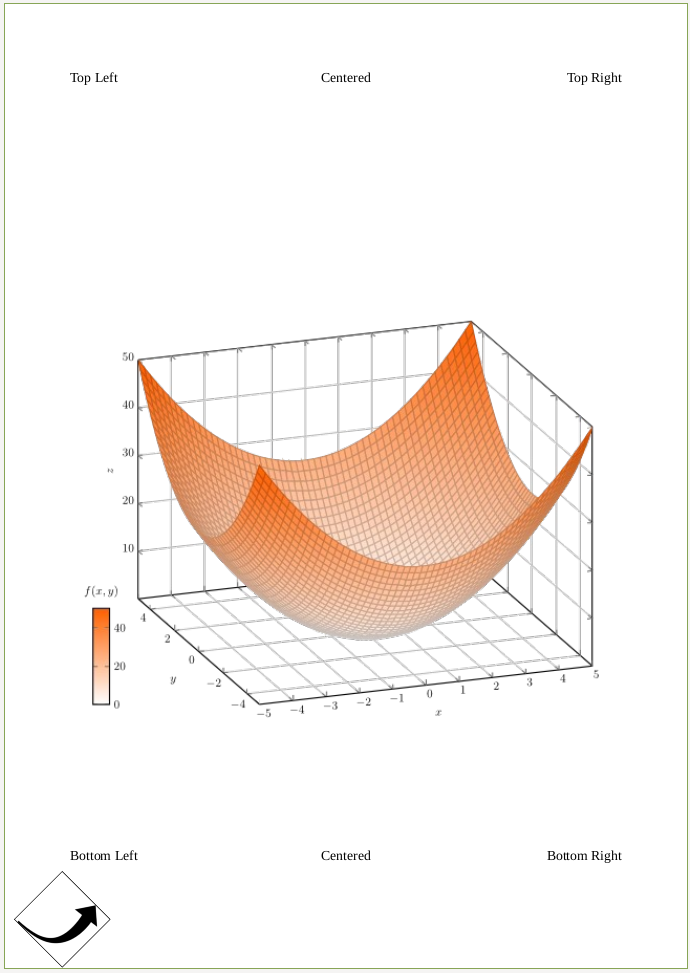
Scaling
In pypdf, the content and the page can either be scaled together or separately. Content scaling scales the contents on a page, and page scaling scales just the page size (the canvas). Typically, you want to combine both.
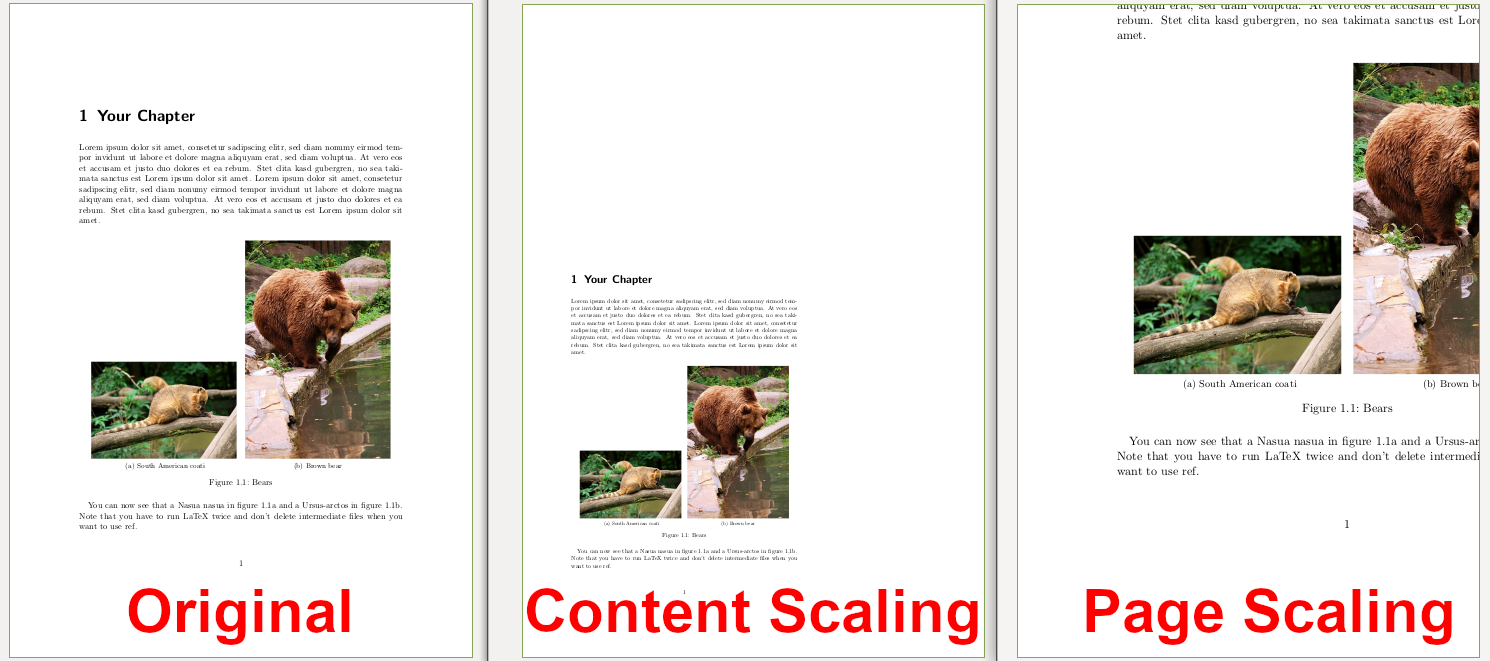
Scaling both the Page and contents together
from pypdf import PdfReader, PdfWriter

# Read the input
reader = PdfReader("side-by-side-subfig.pdf")
page = reader.pages[0]

# Add to the writer
writer = PdfWriter()
writer_page = writer.add_page(page)

# Scale
writer_page.scale_by(0.5)

# Write the result to a file
writer.write("out-scale-all.pdf")
Scaling the content only
The content is scaled around the origin of the coordinate system. Typically, that is the lower-left corner.
from pypdf import PdfReader, PdfWriter, Transformation

# Read the input
reader = PdfReader("side-by-side-subfig.pdf")
page = reader.pages[0]

# Prepare the writer
writer = PdfWriter()
writer_page = writer.add_page(page)

# Scale
op = Transformation().scale(sx=0.7, sy=0.7)
writer_page.add_transformation(op)

# Write the result to a file
writer.write("out-scale-content.pdf")
Scaling the page only
To scale the page by sx in the X direction and sy in the Y direction:
page.mediabox = page.mediabox.scale(sx=0.7, sy=0.7)
If you wish to have more control, you can adjust the various page boxes directly:
from pypdf.generic import RectangleObject

mb = page.mediabox

page.mediabox = RectangleObject((mb.left, mb.bottom, mb.right, mb.top))
page.cropbox = RectangleObject((mb.left, mb.bottom, mb.right, mb.top))
page.trimbox = RectangleObject((mb.left, mb.bottom, mb.right, mb.top))
page.bleedbox = RectangleObject((mb.left, mb.bottom, mb.right, mb.top))
page.artbox = RectangleObject((mb.left, mb.bottom, mb.right, mb.top))
pypdf._page.MERGE_CROP_BOX
pypdf<=3.4.0 used to merge the other page with trimbox.
pypdf>3.4.0 changes this behavior to cropbox.
In case anybody has good reasons to use/expect trimbox, you can add the
following code to get the old behavior:
import pypdf

pypdf._page.MERGE_CROP_BOX = "trimbox"
Transforming several copies of the same page
We have designed the following business card (A8 format) to advertise our new startup.
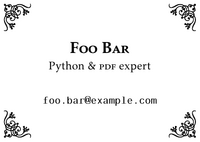
We would like to copy this card sixteen times on an A4 page, to print it, cut it, and give it to all our friends. Having learned about the merge_page() method and the Transformation class, we run the following code. Notice that we had to tweak the media box of the source page to extend it, which is already a dirty hack (in this case).
from pypdf import PaperSize, PdfReader, PdfWriter, Transformation

# Read source file
reader = PdfReader("nup-source.pdf")
sourcepage = reader.pages[0]

# Create a destination file, and add a blank page to it
writer = PdfWriter()
destpage = writer.add_blank_page(width=PaperSize.A4.height, height=PaperSize.A4.width)

# Copy source page to destination page, several times
for x in range(4):
    for y in range(4):
        # Translate page
        transformation = Transformation().translate(
            x * PaperSize.A8.height,
            y * PaperSize.A8.width,
        )
        # Merge translated page
        destpage.merge_transformed_page(sourcepage, transformation)

# Write file
writer.write("out-nup-dest1.pdf")
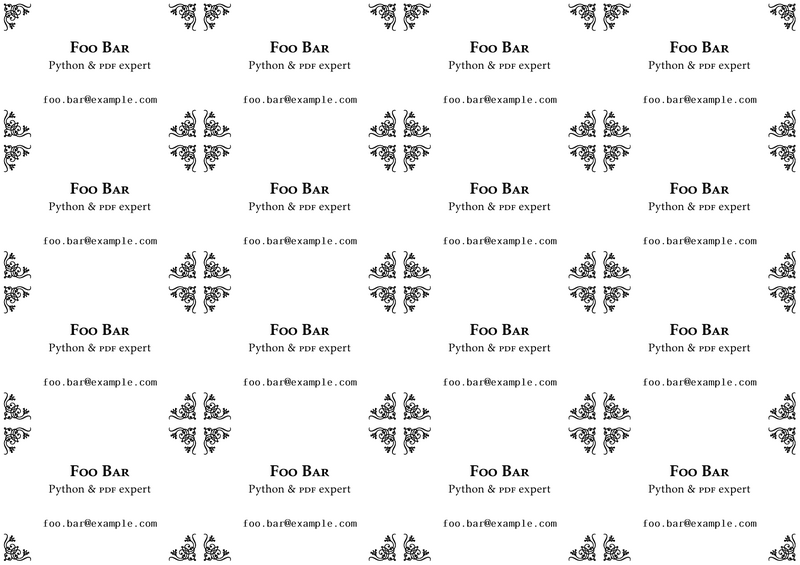
There is still some work to do, for instance, to insert margins between and around cards, but this is left as an exercise for the reader…
Possible issues
Especially when combining merge_page() with transformations, you might end up with a cropped PDF file.
In these cases, consider setting expand=True to re-calculate the corresponding media box.